1. Workspace Overview
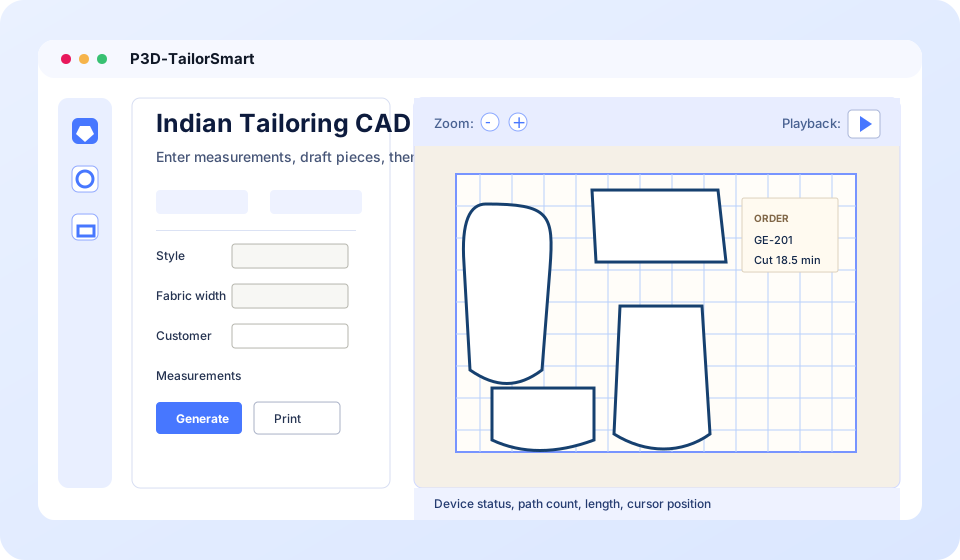
P3D-TailorSmart helps you create garment patterns from measurements and arrange them on fabric or paper. The main screen has a left workflow panel, a central preview, rulers, preview controls, and a small status area for the current job.
2. Install, License, Updates
The Windows installer copies the app, creates optional desktop shortcuts, and can launch the app immediately after installation. On first launch, follow the license prompt shown by the app.
3. Drafting Garments
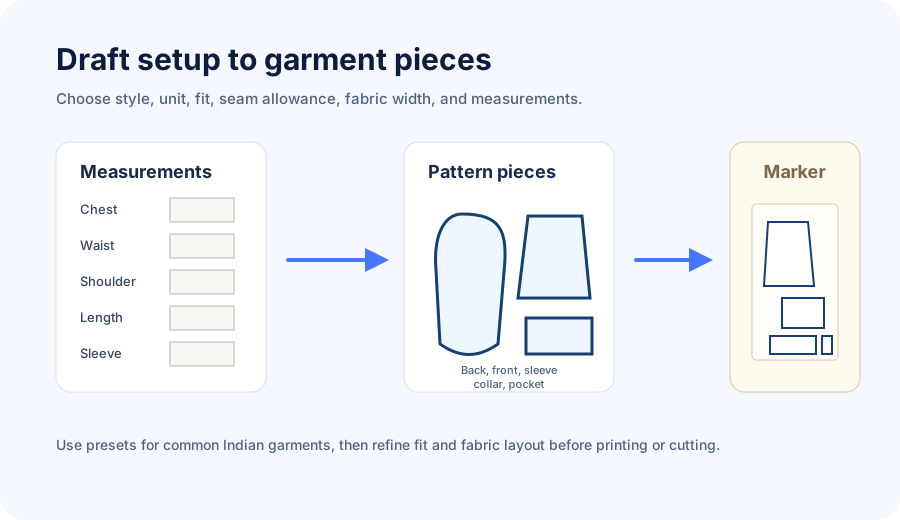
The drafting panel turns tailoring measurements into garment pieces. Choose the style, fit, unit, fabric width, seam allowance, paper output, neckline, sleeve style, and fabric preset before generating the draft.
Supported drafting workflows
- Men's and boys' shirts, pants, trousers, shorts, waistcoats, kurtas, sherwani, pajama, salwar, churidar, blouse, lehenga, nighty, and related Indian tailoring styles.
- Fit profiles such as slim, regular, and relaxed, with adult and toddler-specific ease handling.
- Neckline, sleeve, placket, seam allowance, and fabric layout choices.
- Size grading support for creating related sizes from base measurements.
Basic drafting steps
- Select a garment style in the tailoring panel.
- Select units: inches, centimeters, or millimeters depending on your shop standard.
- Enter customer measurements or load a customer profile.
- Choose fabric width and material preset.
- Click Generate Draft to build the pieces and marker.
4. Measurements and Customers
Measurement fields change based on the selected garment. Values are displayed in the chosen unit but converted internally for geometry and output consistency.
5. Marker Layout
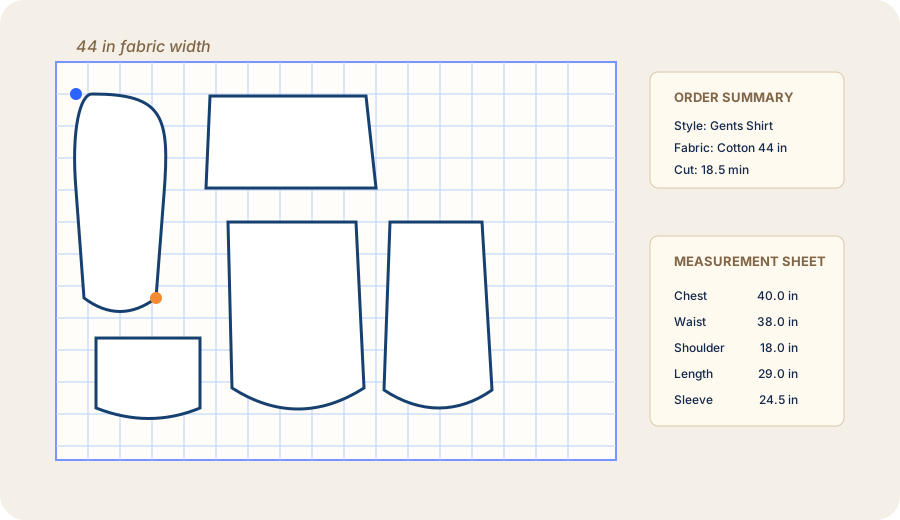
Marker layout places drafted pieces on fabric or paper bounds. The canvas includes rulers, fabric width labels, piece names, fold lines, notches, seam allowance, order summary, usage, and cut-time estimates.
Layout options
- Use standard paper sizes for print layouts or fabric widths for cutting layouts.
- Choose marker width or trim-to-pieces output depending on production needs.
- Review area usage, estimated setup time, cut time, and cloth length.
- Use shop or factory layout modes where available for different production flows.
6. Editing and Preview
Use the preview canvas and Edit menu to refine imported or drafted paths before output.
Supported imports
The app can work with image tracing, SVG, PDF, STL outlines, and common pattern exchange files. Imported files become editable pattern paths that can be printed, saved, or sent to supported cutters.
7. Printing and Sharing
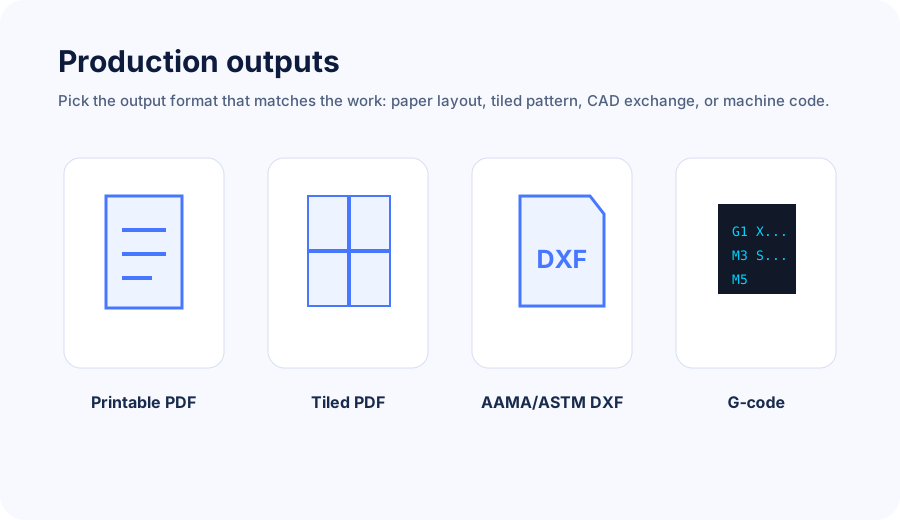
Choose the output based on how your shop works: print a full layout, print tiled pages for assembly, save the order for later, or share pattern files with another pattern system.
- Save Project: stores the current workspace for later editing.
- Share Pattern File: exports garment pieces for compatible pattern systems.
- Save Printable PDF: produces a single printable marker or sheet layout.
- Save Tiled PDF: splits the layout across pages with overlap for assembly.
- Print Layout / Print Tiled Layout: sends PDFs to the system print workflow.
8. Sending to Cutter
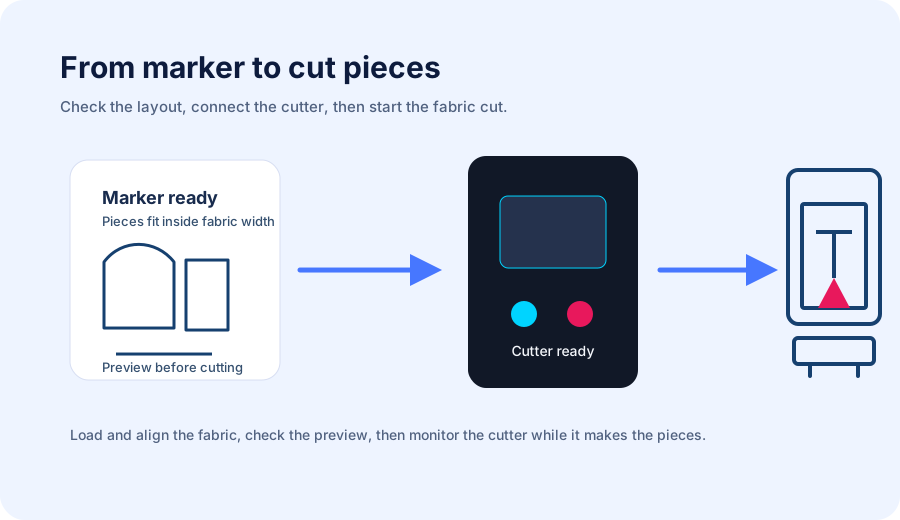
If your shop uses a supported cutter, the cutter panel helps connect the machine and send the prepared layout. Always preview and inspect the marker before starting the cut.
Before cutting
- Confirm fabric is loaded and aligned on the cutter.
- Check the marker bounds against the actual fabric width.
- Use preview to confirm the order and placement of pieces.
- Use the cutter settings recommended during installation or training.
- Start the cut only after the device status confirms a working connection.
9. Projects and Files
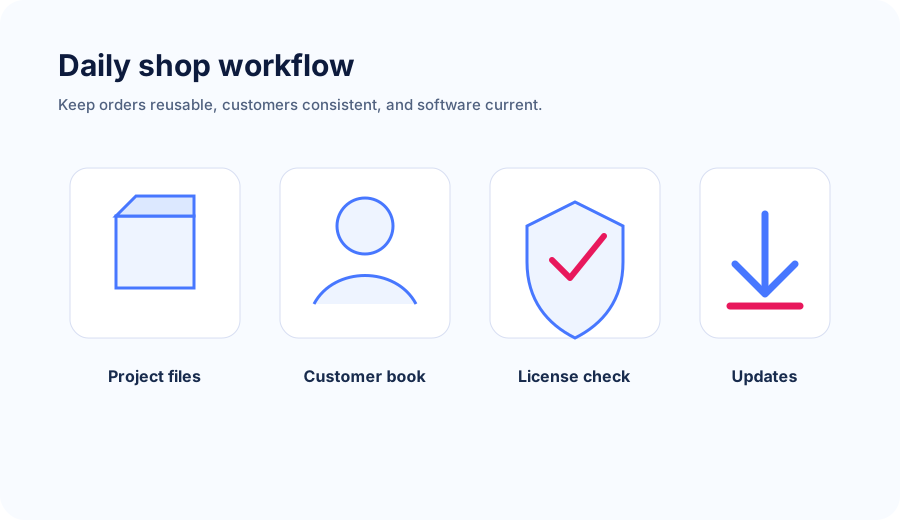
Use project files for repeat orders, customer corrections, and paused work. The app also supports autosave recovery when available.
10. Troubleshooting
The splash screen or icons do not look updated
Reinstall with the latest setup file and restart Windows Explorer if shortcuts still show cached icons.
The app cannot connect to the cutter
Confirm the cutter is powered on, connected to the correct network or cable, and not blocked by Windows firewall. Contact P3D support if the machine was recently moved or serviced.
The printed layout is split incorrectly
Check paper size, overlap millimeters, print bounds, and whether you selected printable or tiled output.
Imported pattern file does not show expected pieces
Confirm the file is a supported pattern file and that the garment pieces are present in the file.
The cutter job looks empty
Make sure at least one pattern piece is visible, selected if required, and inside the fabric or sheet area before sending the job.